

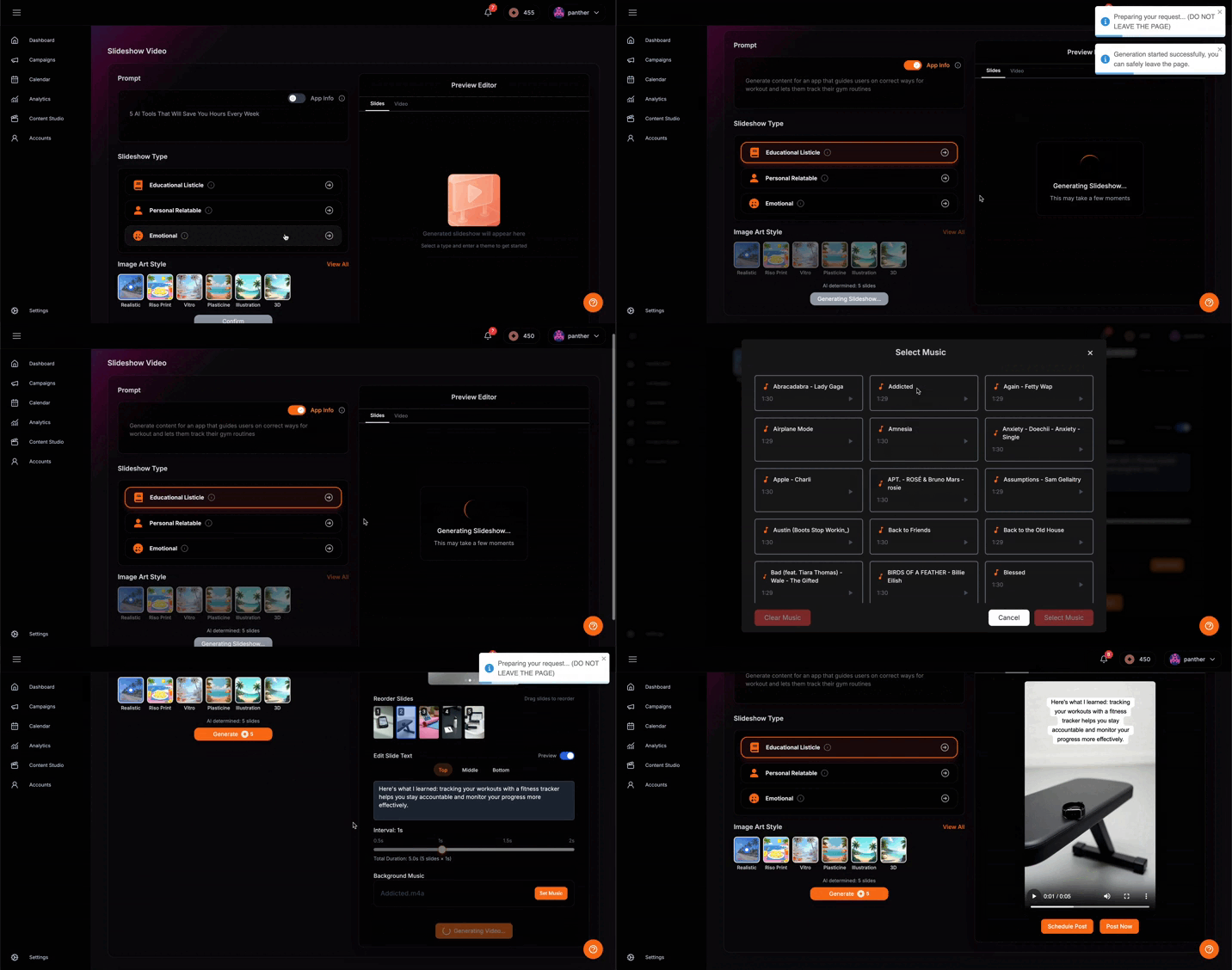
Creating Slideshows
Step 1: Content Input- Click the Slideshow format in Content Studio
- Enter your content prompt (any topic related to your app or message)
- Toggle “App Info” to automatically include your app information from initial onboarding
- Select Slideshow Type: Choose from Educational, Listicle, Personal, or Emotional approaches
- Choose Image Style: Select from diverse visual styles including Risoprint, Vitro, Realistic, and other available options
- Click “Confirm” to determine slide count and token requirements for generation
- Review the generation cost and slide preview
- Click “Generate” to create slides with accompanying text
- Preview generated slides with text overlay
- Edit text content on individual slides as needed
- Upload your own music or select from the available music library
- Trim the selected music to match your desired video length
- Click “Generate” again to create the final slideshow video with music
- Review the complete video presentation
- Choose to post immediately or schedule for later publishing